

Choose general notifications or targeted negative-feedback alerts
The first decision is whether you need a general notification about new Google reviews or an alert that helps a particular team notice negative feedback. A small operation with one profile and a person checking the inbox may be able to work with Google notifications. A large organization often needs the feedback, affected location, and responsible area together in the same email.
Cacao is Google reputation management software for multi-location businesses. Its alerts connect individual feedback with the people who need to know about it, alongside separate review-response, analytics, and reporting capabilities.
How to turn on Google Business Profile review notifications
- Sign in with the Google account that manages the Business Profile and open that profile.
- Select More, then Notifications.
- Find the notification for new customer reviews and turn it on.
- Check the relevant email inbox and notification settings. Google says notifications may arrive through email, Search, or Maps.
In the Google Maps app, open Business, then Notifications to find profile notifications. See Google’s instructions for managing Business Profile notifications.
Google’s notification documentation describes new-review notifications. It does not describe category-based distribution to your departments or a negative-comment filter. For a workflow that evaluates negative feedback and emails configured recipients, consider the targeted approach below.
Which feedback can trigger a Cacao alert?
Cacao can alert your team about negative ratings and negative written feedback. These signals can agree, but a customer may also give a good score while describing a problem.
Low rating, no comment
The rating and affected location.
Low rating and negative comment
The score, original comment, and classification.
Good rating with a negative comment
The issue in the text, even though the score is good.
These scenarios apply to both Google reviews and Cacao surveys, configured from the same place. The feedback sources remain distinct: a survey response stays in Cacao and is not automatically published as a Google review.
Configure the categories and people who should receive alerts
Start with your organization’s responsibilities. Define the categories and subcategories that help people understand the feedback, then configure the email recipients and the relevant locations. For example, a promotion complaint may need Marketing, while a service issue may need Operations.
Enable the relevant alerts and check the recipients for each part of the organization. Use a test alert to confirm receipt before relying on the configuration. The Cacao alert setup tutorial shows the product settings and configuration screens.
Keep receiving an alert separate from gaining access to a system. A person can read the email without a Google Business Profile account. Responding through Cacao requires an authorized Cacao user.
What a negative review email alert looks like
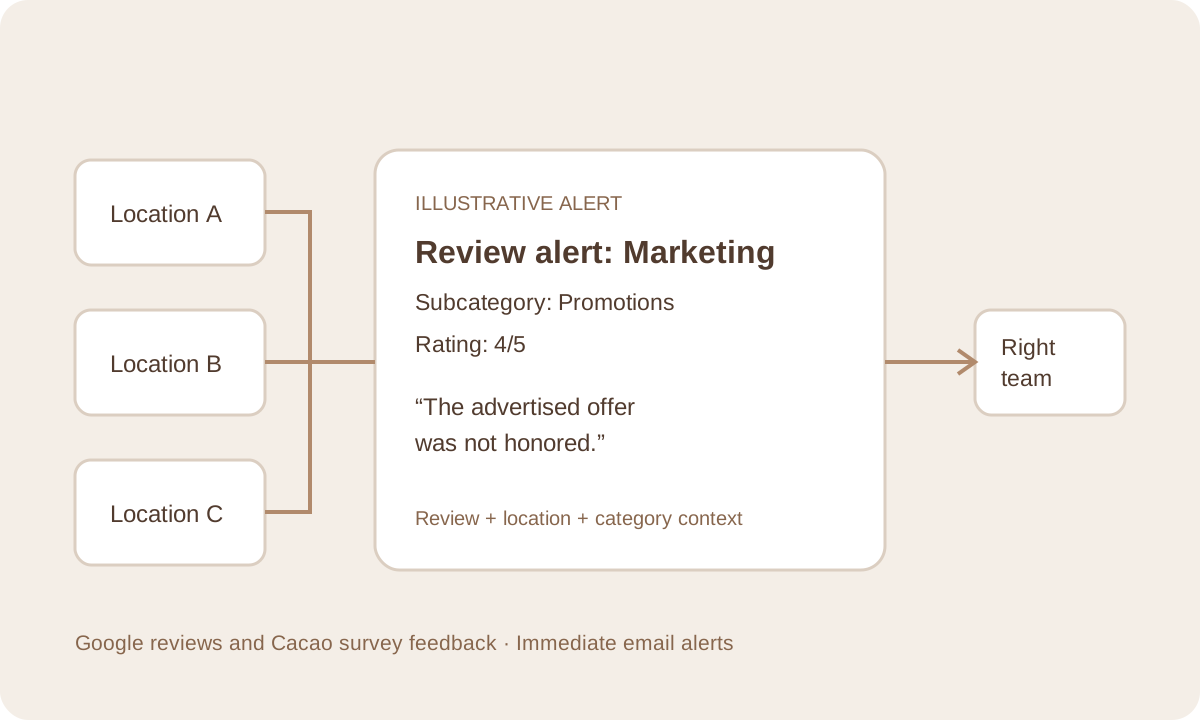
The email identifies the review, location, category, and assigned subcategory when present. Here is a fictional US example showing why a good rating can still contain feedback worth sending to a responsible team.
Review alert: Marketing — Example Restaurant Group — Austin North
Cacao App <noreply@cacao.to>
A review was assigned to a category with email alerts enabled.
- Location
- Example Restaurant Group — Austin North, Austin, TX
- Category
- Marketing
- Subcategory
- Promotions
- Rating
- 4/5
- Reviewer
- Example customer
- Review date (UTC)
Review:
The food was excellent, but the advertised offer was not honored. The team couldn’t tell me who could resolve it.
AI assignment reason:
The customer reports that an advertised promotion was not honored.
The subcategory field appears when a subcategory has been assigned. This example illustrates the content of an alert; it is not a customer testimonial or a screenshot of a real customer review.
When is negative review alert software worth paying for?
Software becomes useful when the people who need the information are spread across a large organization and do not all have access to Google Business Profile. The challenge is getting the relevant feedback to someone who can route it to the person responsible for handling it.
- Many locations: checking each profile and forwarding each relevant review becomes difficult to maintain.
- Different responsible teams: Marketing, Operations, Product, or a local manager may need different feedback.
- Limited Google access: people who need the context can receive the email without being added to every Business Profile.
- Complaints inside good ratings: a score-only review of feedback can miss problems in the text.
- An internal handoff: the recipient needs the review, location, and classification together to forward it for management.
If a general new-review notification and a simple inbox routine already meet your needs, start there. Evaluate Cacao’s negative review alerts when distributing the feedback across teams and locations is the part your current process cannot handle consistently.
Test delivery and check an alert that did not arrive
When feedback arrives in Cacao and triggers an alert, Cacao sends the notification immediately. That event-based email is separate from scheduled reviews of your dashboard or reports.
- Confirm that the relevant alert is enabled and that the feedback matches its configuration.
- Check the category, subcategory when assigned, location, and recipient address.
- Send a test alert and check the recipient’s inbox, spam folder, and company email filtering.
- If it still does not arrive, share the affected feedback, location, time, and recipient with your Cacao contact so the delivery can be investigated.
For Google notifications, check the correct managing account and the notification settings for the affected Business Profile.
After the alert: handoff, response, and reporting
The recipient can read the email and forward it to the responsible area or location. An authorized Cacao user can manage the review and respond when appropriate. Email receipt does not grant Google or Cacao permissions.
Use the negative Google review response guide for the public reply. The organization handles investigation, customer recovery, and resolution through its own working process; an alert itself does not establish that a case has been resolved.
Use periodic review monitoring to investigate recurring patterns, and customer feedback reports to share results across locations. Those activities complement immediate alerts.
Negative review alert FAQ
How can I get alerts for negative reviews?
Enable Google Business Profile review notifications for general updates, or configure targeted email alerts in Cacao. Cacao alerts can cover low ratings, including ratings without a comment, and negative comments even when the rating is good. You configure categories, subcategories, and recipients for Google reviews and Cacao survey feedback.
Can a four- or five-star review trigger an alert?
Yes. A good rating can accompany a negative comment. Cacao can detect the negative feedback and send an alert, including for internal survey responses with good scores.
Does a low rating without a comment trigger an alert?
Yes. A low rating can trigger an alert even when the customer does not leave written feedback.
Does the recipient need access to Google Business Profile?
No Google Business Profile access is needed to receive and read the Cacao email alert. The recipient can forward it to the responsible person. Responding from Cacao requires an authorized Cacao account; receiving an email does not grant product access.
Are Google reviews and Cacao survey alerts configured separately?
Both are configured from the same place in Cacao. Keep the source clear when reviewing an alert: Google reviews are public, while survey ratings and comments remain inside Cacao.
Does every alert show a subcategory?
A subcategory is shown when it has been assigned. An alert without an assigned subcategory does not show that field.
Are alerts the same as dashboards or reports?
No. An alert notifies the responsible person about individual negative feedback immediately when it arrives in Cacao. Dashboards and reports support a separate review of metrics, patterns, and location performance over a selected period.
Get the right feedback to the people who need it
See how Cacao can send alerts for Google reviews and internal survey feedback across your categories, teams, and locations.
Request a demo